

Are you a TikTok user tired of dealing with spammy accounts, unwanted messages, or trolls disrupting your feed? Whether you’re a casual creator sharing fun videos, a social media enthusiast building your presence, or a parent trying to keep your teen’s account safe, knowing how to block someone on TikTok is essential.
In this guide, we’ll walk you step by step through the easiest ways to stop unwanted interactions, protect your privacy, and regain full control of your TikTok experience.
By the end, you’ll have the confidence to enjoy TikTok without distractions—and without worrying about people who shouldn’t be in your digital space.
Why Blocking Someone on TikTok is Important
Blocking someone on TikTok is more than just a feature—it’s a safety tool. Here’s why it matters:
- Protect Your Privacy: Block unwanted followers from viewing your videos or interacting with you.
- Stop Harassment: Avoid cyberbullying, trolling, or offensive comments.
- Manage Interactions: Control who can comment, message, or duet your videos.
- Prevent Spam: Block fake accounts and bots that flood your inbox.
Blocking is simple, effective, and ensures a stress-free TikTok experience.
Step-by-Step Guide: How to Block Someone on TikTok
TikTok allows users to block accounts directly from a user profile, comments, or messages. Here’s how to do it in detail:
1. Open the TikTok App
Ensure you’re logged into your TikTok account. Blocking someone requires being signed in.
- Tip: Update your TikTok app to the latest version to access all privacy features.
2. Navigate to the User’s Profile
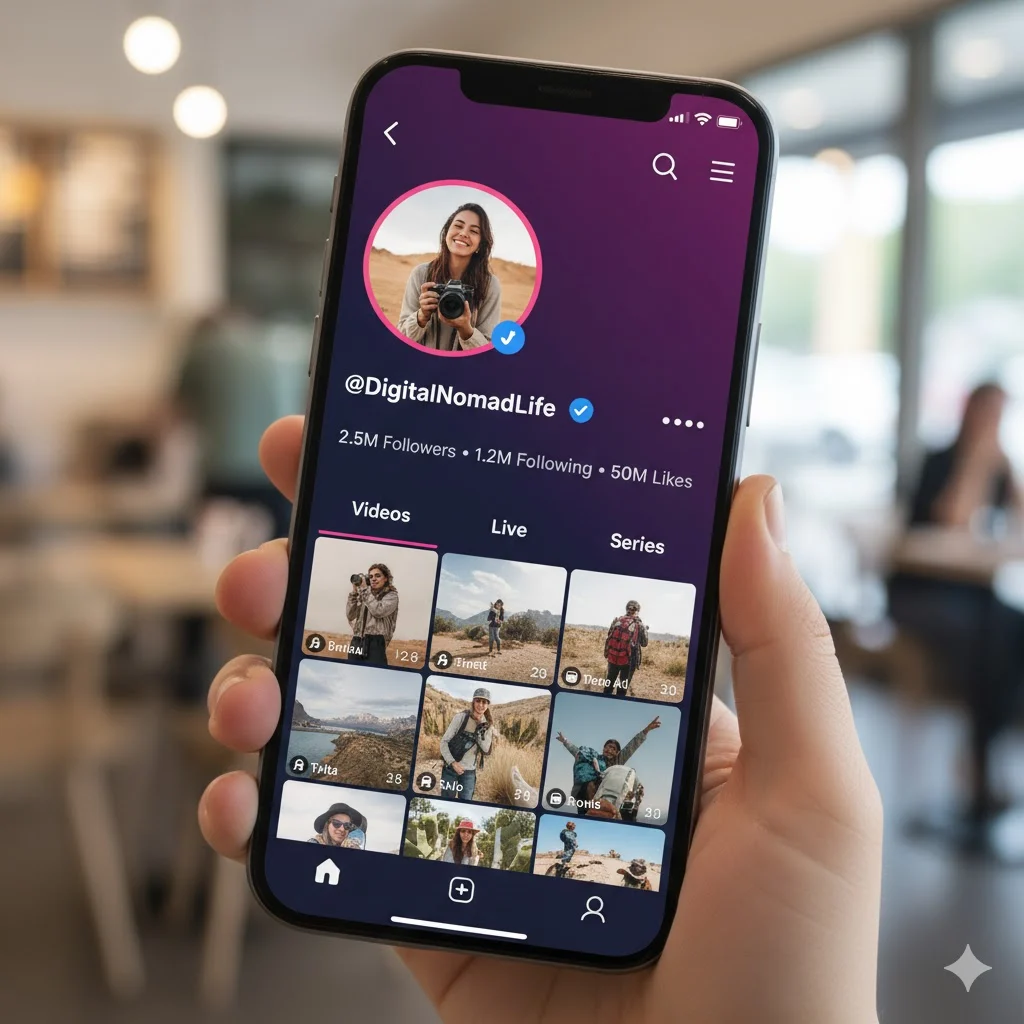
Search for the person you want to block using the search bar or by tapping their username in comments or messages.
- Tip: Check their activity if you’re unsure whether to block them.
3. Tap the Three Dots (More Options)
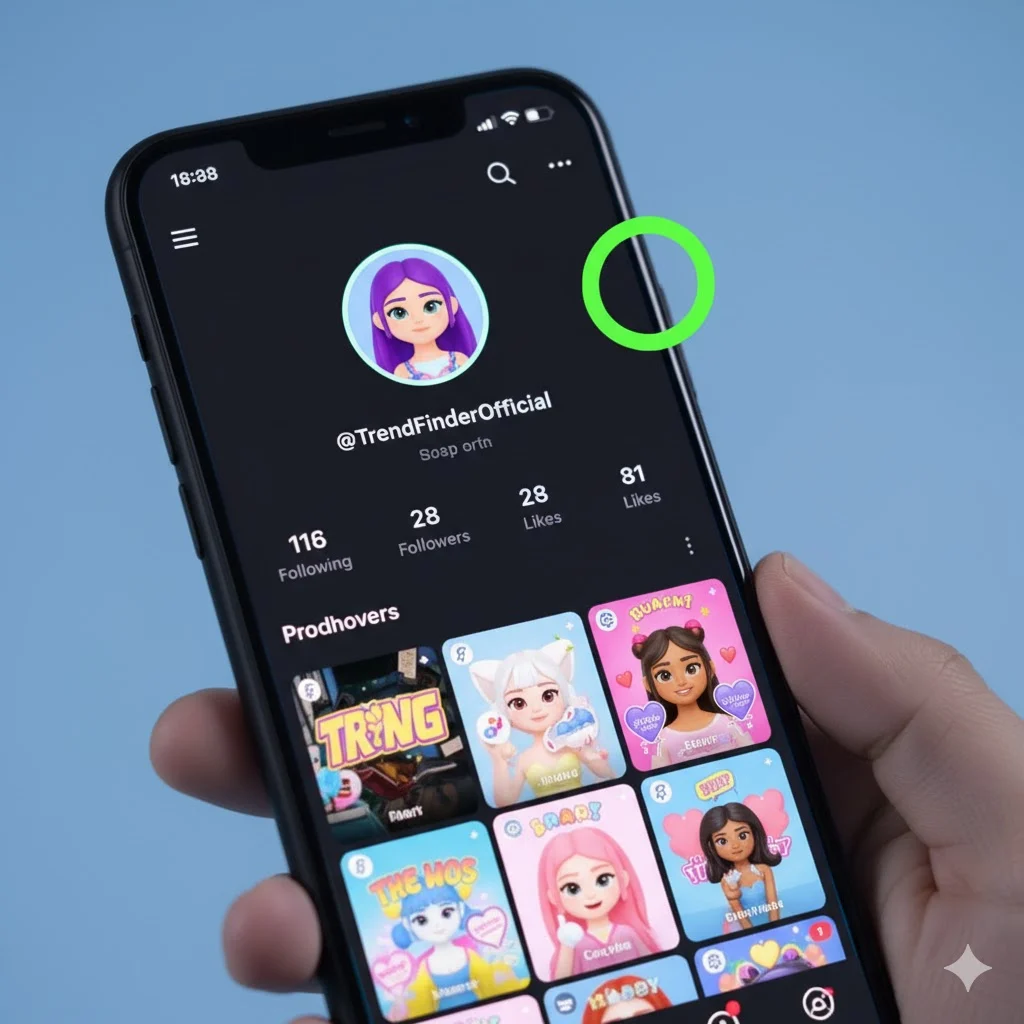
On their profile page, look for the three dots ... in the top-right corner. This opens a menu of account actions.
4. Select “Block”
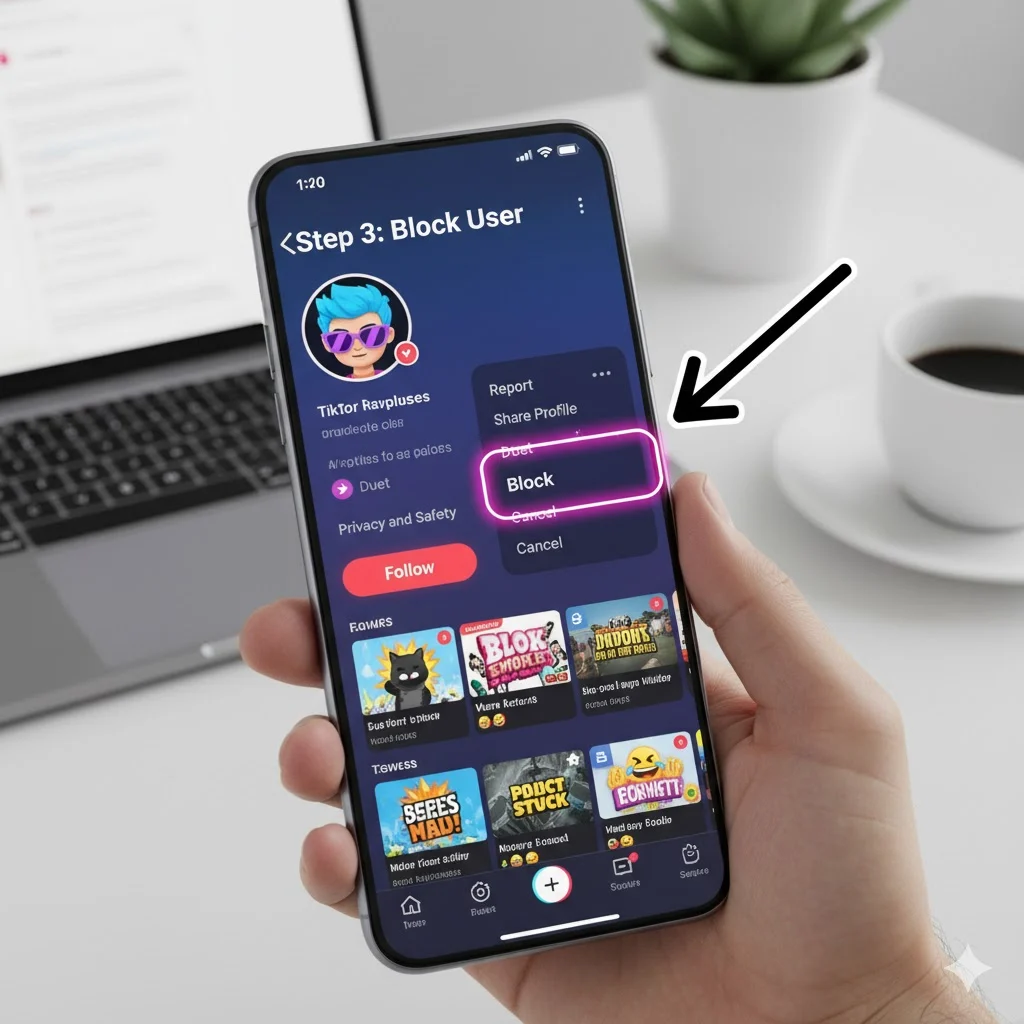
From the menu, tap Block. TikTok will ask for confirmation.
- Tip: Blocking will remove the user from your followers list automatically.
5. Confirm the Block
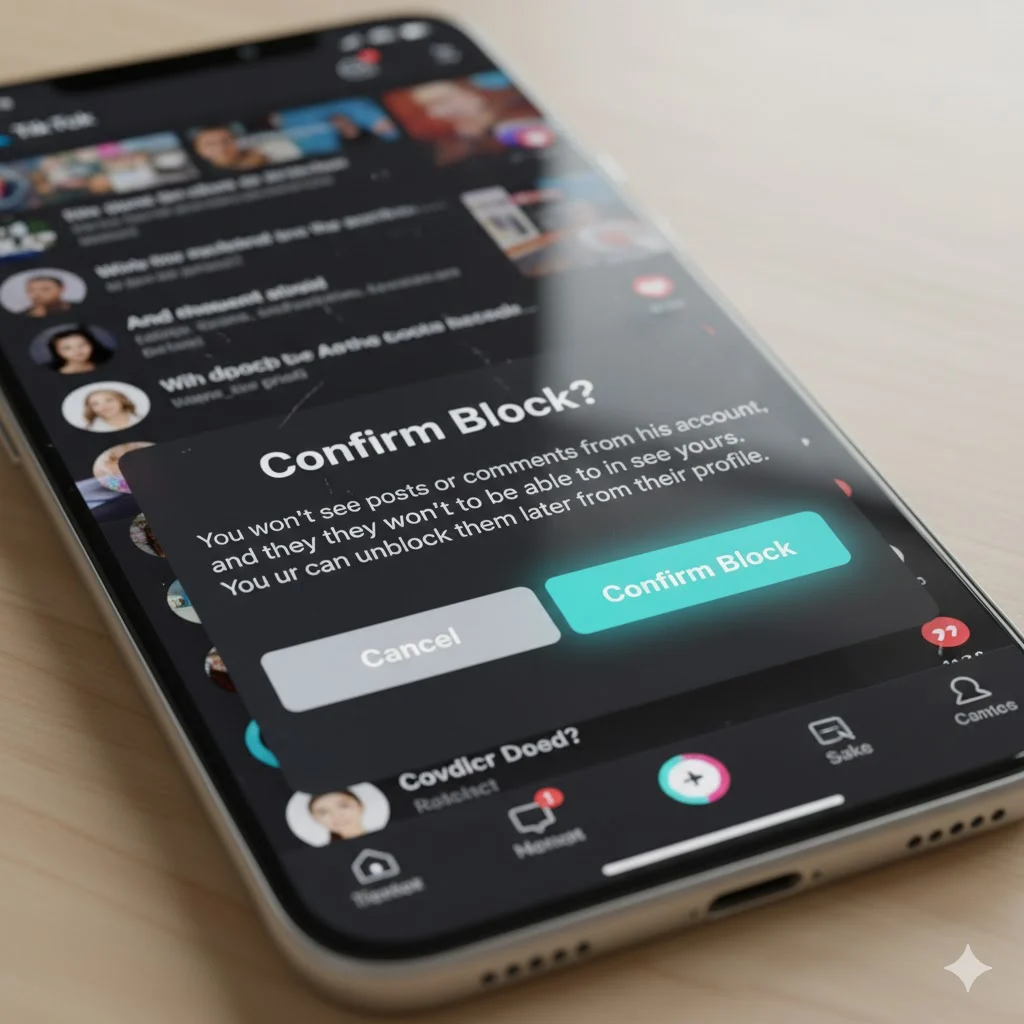
Tap Confirm. The user is now blocked:
- They can’t view your content.
- They can’t send messages.
- They can’t comment on your videos.
Pro Tip: If you’re unsure about permanently blocking someone, TikTok also offers “Restrict”, which limits interactions without a full block.
How to Block Someone via Comments or Messages
You can block users directly from comments or direct messages without visiting their profile.
Block from Comments
- Tap the comment from the user.
- Tap the user profile or hold the comment.
- Select Block.
Block from Direct Messages
- Open your Inbox → Messages.
- Tap the conversation with the user.
- Tap the three dots → Block.
Blocking via comments or messages ensures that negative interactions stop immediately.
How to Unblock Someone on TikTok
If you change your mind, unblocking is straightforward:
- Go to Profile → Settings → Privacy → Blocked Accounts.
- Select the user you want to unblock.
- Tap Unblock.
- Tip: Unblocking restores their ability to view your content and interact with you.
How to Control TikTok Privacy Settings
Blocking is essential, but proactive privacy management is even better.
1. Make Your Account Private
- Go to Settings → Privacy → Private Account.
- Only approved followers can see your videos.
2. Filter Comments
- Go to Settings → Privacy → Comments.
- Block comments from specific users or filter offensive words automatically.
3. Manage Messages
- Go to Settings → Privacy → Direct Messages.
- Choose who can send you messages (Everyone, Friends, or No One).
4. Limit Duets and Reactions
- Restrict who can duet or react to your videos in Privacy settings.
Advanced Tips for Staying Safe on TikTok
- Report Abusive Content: Use TikTok’s Report feature for harassment or spam.
- Regularly Review Followers: Remove suspicious or unknown accounts.
- Enable Two-Factor Authentication: Add extra security to your account.
- Use TikTok Family Pairing: Parents can control children’s accounts.
Common FAQs About Blocking on TikTok
1. Can a blocked user see my TikTok videos?
No, they cannot view your profile or content after being blocked.
2. Will the user know they’re blocked?
TikTok does not notify them directly, but they may notice restrictions when trying to interact.
3. Can I block someone from my live videos?
Yes, blocked users cannot join your live streams.
4. Can blocked users still message me?
No, all direct messages from blocked users are prevented.
5. How do I block multiple users at once?
Currently, TikTok requires blocking users individually.
6. Can I unblock and re-block a user?
Yes, TikTok allows unblocking and re-blocking at any time.
7. Does blocking remove a user from followers?
Yes, blocked users are removed from your followers list automatically.
8. Can I block someone via TikTok Web?
Yes, the block feature is available on TikTok’s desktop version.
9. Does blocking affect duets or stitches?
Yes, blocked users cannot create duets or stitches with your content.
10. Can I filter comments instead of blocking?
Yes, TikTok lets you hide comments with specific words or block certain users from commenting.
Common Mistakes Users Make When Blocking on TikTok
- Not updating the app: Older versions may not support full blocking features.
- Assuming block removes content elsewhere: Blocked users can still see shared content if it’s public.
- Not managing privacy settings: Blocking alone may not stop spam or harassment.
Visual Prompts for Step-by-Step
- Open TikTok App: Smartphone with TikTok logo on home screen.
- User Profile: TikTok profile page with three dots highlighted.
- Block Option: Menu with Block button highlighted.
- Confirmation Screen: Pop-up confirming user block.
- Privacy Settings: TikTok settings page showing account privacy toggle.
Conclusion
Blocking someone on TikTok is a simple yet powerful way to protect your privacy and ensure a positive experience on the platform. By following these steps, managing your privacy settings, and using TikTok’s reporting features, you can enjoy content safely and confidently.
Remember, your TikTok experience is yours to control—don’t hesitate to block or restrict anyone who makes you uncomfortable.