


Are you struggling with a slow, glitchy, or unresponsive iPhone? Or maybe you’re planning to sell or gift your device and want to make sure all your personal data is completely erased? If so, you’ve come to the right place.
In this guide, I’m speaking directly to iPhone users like you—from beginners who are not tech-savvy to experienced users who want a smooth, hassle-free reset. By the end, you’ll know exactly how to factory reset your iPhone safely and efficiently, no matter which model you own.
Whether your goal is to fix performance issues, remove sensitive data before selling, or just start fresh, this step-by-step guide will show you the safest methods, backup tips, troubleshooting strategies, and insider tips that Apple doesn’t always highlight. Say goodbye to confusion and frustration, and let’s get your iPhone running like new again!
Why You Might Need to Factory Reset Your iPhone
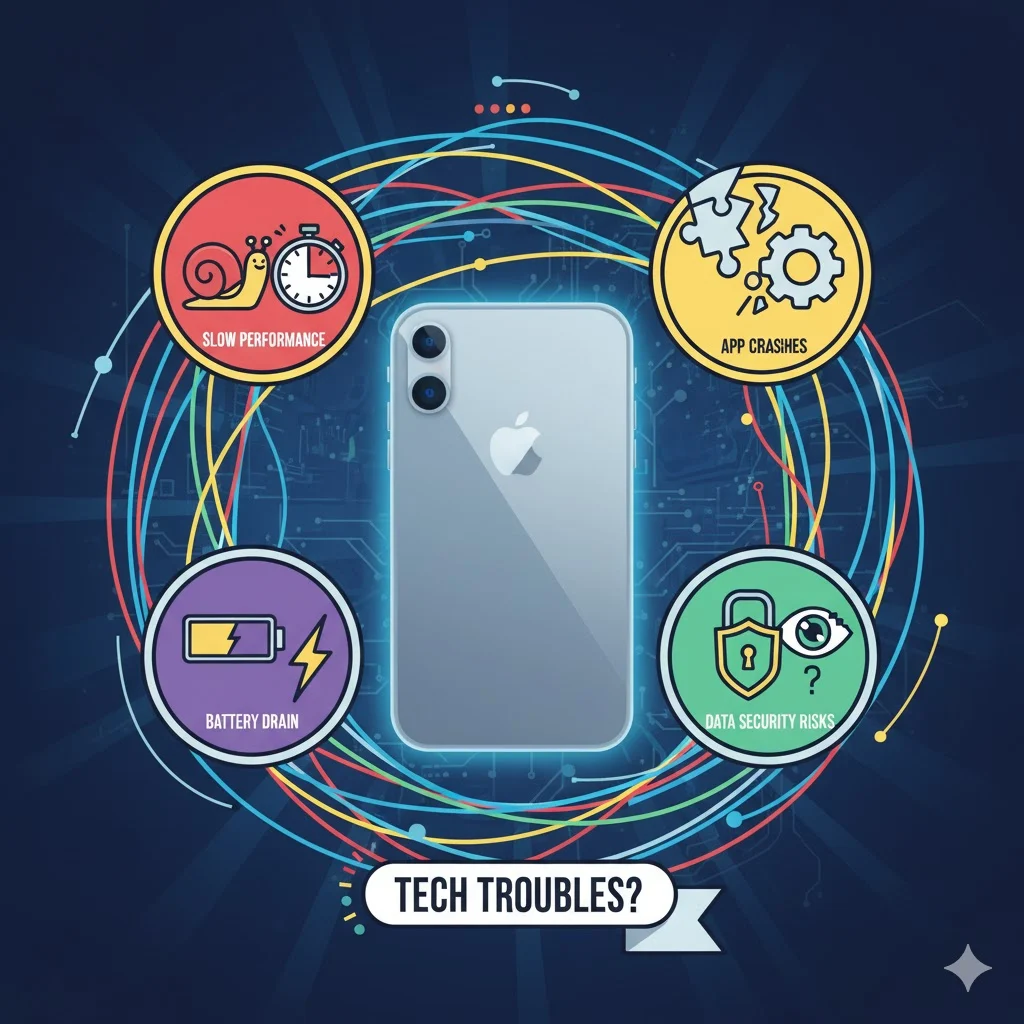
A factory reset removes all data and settings, returning your iPhone to its original state. Here are the main reasons you may need it:
- Troubleshooting persistent issues
- Apps crashing frequently
- Freezing or lagging performance
- Battery draining faster than usual
- Selling or gifting your iPhone
- Protect your personal information
- Avoid leaving accounts, passwords, or photos
- Starting fresh for better performance
- Remove accumulated cache and settings
- Optimize iPhone speed and battery life
- Security reasons
- Remove sensitive data before repair or resale
- Protect personal information from unauthorized access
⚠️ Important: Always back up your iPhone before performing a factory reset to avoid losing important data.
How to Backup Your iPhone Before Factory Reset

Backing up your iPhone ensures you can restore all photos, contacts, apps, and settings after a reset.
1. Backup Using iCloud
- Connect your iPhone to a Wi-Fi network.
- Open Settings > [your name] > iCloud > iCloud Backup.
- Tap Back Up Now.
- Wait until the backup completes.
✅ Pro Tip: Make sure you have enough iCloud storage to accommodate your backup.
2. Backup Using iTunes/Finder
- Connect your iPhone to your computer via USB cable.
- Open iTunes (on Windows or macOS Mojave and earlier) or Finder (macOS Catalina and later).
- Select your iPhone from the list of devices.
- Click Back Up Now.
- Wait for the backup to finish.
3. Backup Specific Data Only
If you don’t want a full backup, consider backing up only:
- Photos and videos using iCloud Photos or Google Photos
- Contacts via iCloud or Google Contacts
- Important documents using iCloud Drive or other cloud storage apps
Methods to Factory Reset iPhone
Depending on your situation and iPhone model, there are three main ways to reset your iPhone:
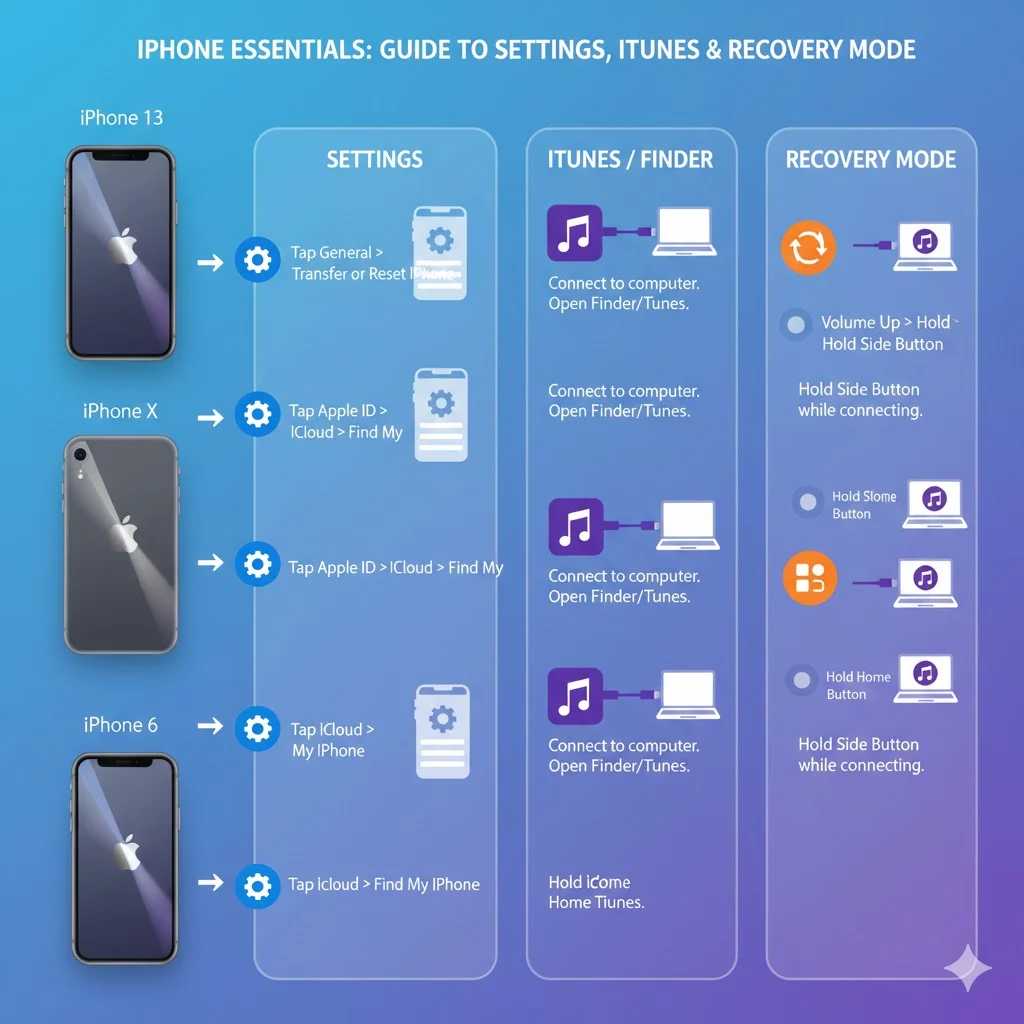
- Reset via iPhone Settings (recommended for most users)
- Reset via iTunes/Finder (if the device is partially unresponsive)
- Reset using Recovery Mode (for unresponsive or disabled iPhones)
Method 1: Factory Reset via iPhone Settings
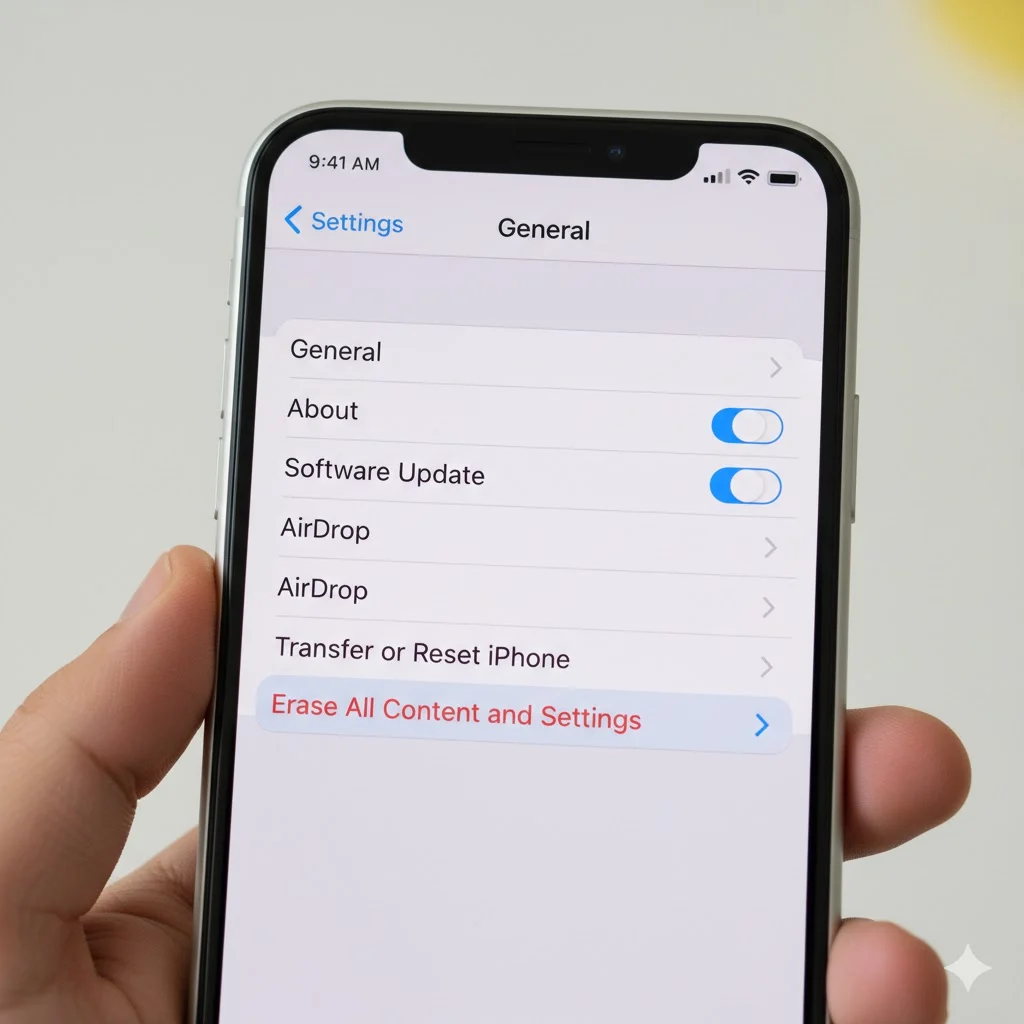
This is the easiest and safest method for most users.
- Open the Settings app.
- Navigate to General > Transfer or Reset iPhone.
- Tap Erase All Content and Settings.
- Enter your passcode and Apple ID password if prompted.
- Confirm by tapping Erase iPhone.
Your iPhone will restart automatically and erase all data. When it powers on, it will display the “Hello” setup screen, just like a new device.
💡 Tip: Ensure your iPhone has at least 50% battery or is plugged in during the reset process.
Method 2: Factory Reset via iTunes/Finder
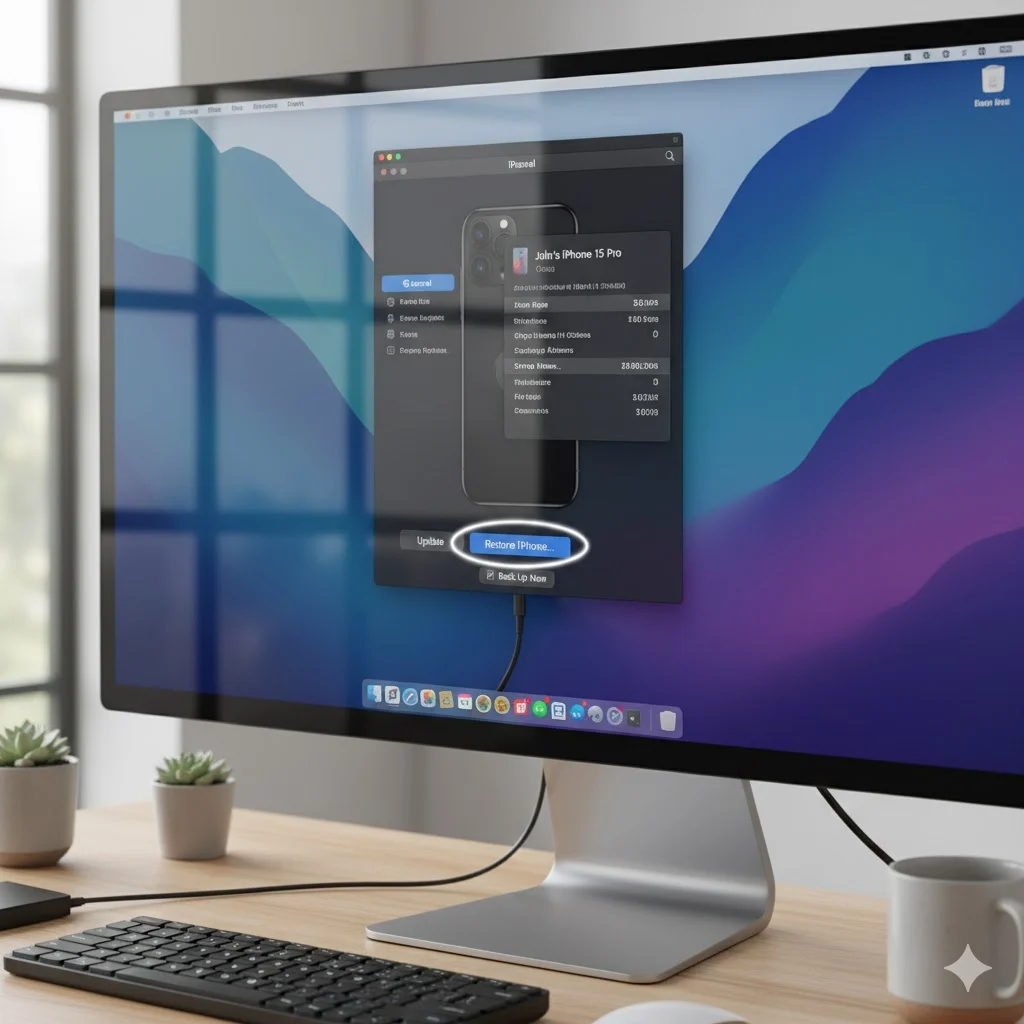
Use this method if your iPhone is slow, stuck, or not responding.
- Connect your iPhone to your computer.
- Open iTunes (Windows or macOS Mojave and earlier) or Finder (macOS Catalina+).
- Select your iPhone in the device list.
- Click Restore iPhone.
- Confirm the action and wait for the process to complete.
✅ Benefit: This method will also update your iPhone to the latest iOS version during the restore process.
Method 3: Factory Reset Using Recovery Mode
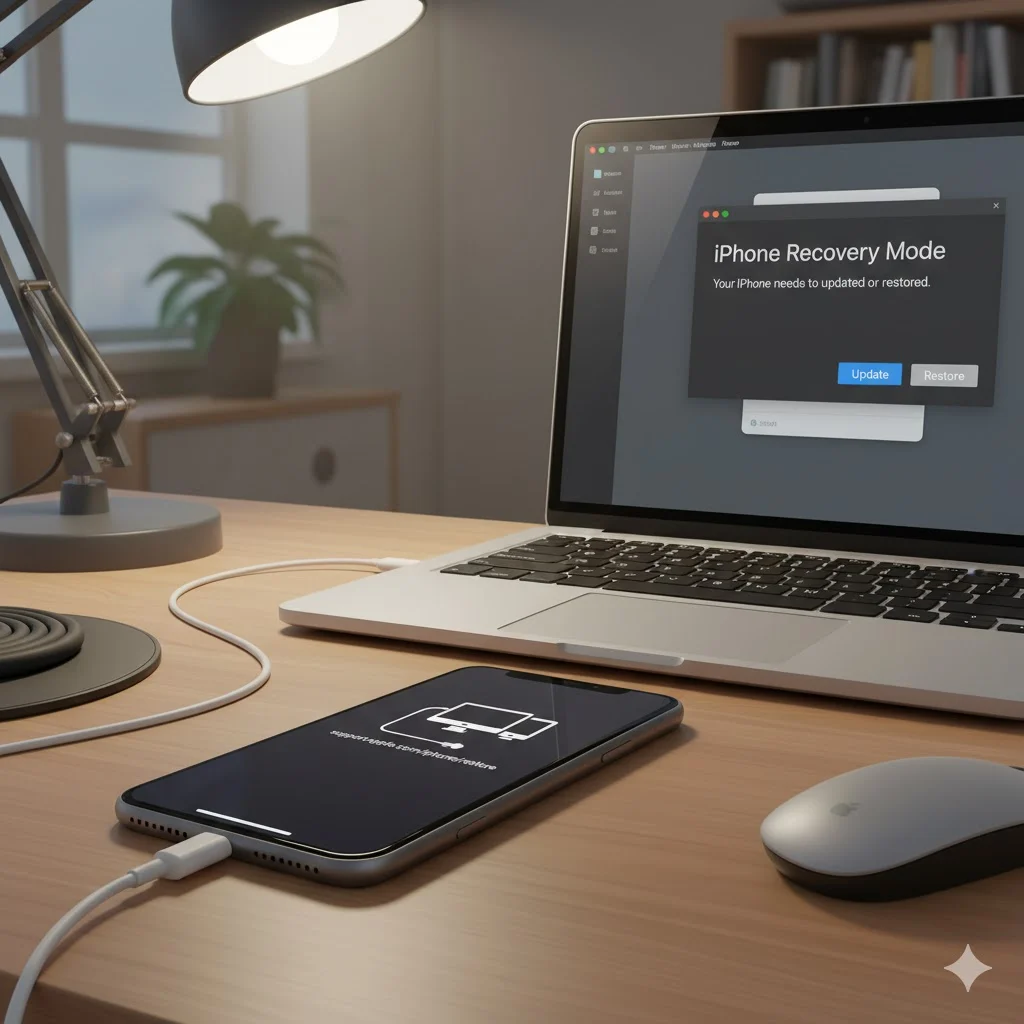
For iPhones that are unresponsive, frozen, or disabled:
- Connect your iPhone to a computer via USB.
- Put your iPhone into Recovery Mode:
- iPhone 8 or later: Press and release Volume Up, then Volume Down, then hold the Side Button until recovery screen appears.
- iPhone 7 / 7 Plus: Hold Volume Down + Side Button until recovery screen appears.
- iPhone 6s or earlier: Hold Home + Top/Side Button until recovery screen appears.
- On your computer, click Restore when prompted.
- Wait until the process completes; your iPhone will restart as new.
⚠️ Note: Recovery Mode should be used only if other methods fail.
Step-by-Step Reset Instructions for Popular iPhone Models
| iPhone Model | Method Recommended | Notes |
|---|---|---|
| iPhone 14 / 15 | Settings or iTunes | Fastest method using Settings app |
| iPhone 12 / 13 | Settings | iOS 15+ supports direct reset |
| iPhone SE (3rd Gen) | Settings or iTunes | Can use Recovery Mode if frozen |
| iPhone 8 / X / XR | Settings or Recovery Mode | Volume + Side button combo needed for Recovery Mode |
| iPhone 7 / 7 Plus | Recovery Mode | Use Volume Down + Side Button combo |
| iPhone 6s / 6 / 5s | Recovery Mode | Home + Top button combo required |
Mistakes to Avoid When Resetting Your iPhone
- Not backing up your data
- Can result in permanent loss of photos, contacts, and apps.
- Forgetting Apple ID credentials
- Activation Lock will prevent setup after reset.
- Resetting with low battery
- Always have at least 50% charge or plug in during reset.
- Interrupting the reset process
- Disconnecting the iPhone during reset can cause software issues.
- Resetting the wrong device
- Double-check you’re resetting the intended iPhone.
Tips After Factory Reset
- Restore from Backup: Use iCloud or iTunes to restore apps, contacts, and settings.
- Check for iOS Updates: Go to Settings > General > Software Update.
- Set Up Apple ID and Security Features: Enable Face ID / Touch ID and passwords.
- Optimize Storage: Only reinstall essential apps to avoid clutter.
- Explore iCloud Features: Backup photos, notes, and documents for seamless usage.
Troubleshooting: iPhone Reset Problems and Fixes
| Problem | Possible Cause | Solution |
|---|---|---|
| iPhone frozen during reset | Software bug | Force restart and retry reset |
| iPhone not restoring from iTunes | Outdated iTunes | Update iTunes and retry |
| Forgot Apple ID | Activation Lock | Recover Apple ID via Apple ID Recovery |
| Reset fails repeatedly | Corrupt backup | Try Recovery Mode reset |
| Battery dies mid-reset | Low charge | Charge fully and retry reset |
Security Considerations
- Erase iPhone Before Sale: Always use Erase All Content and Settings to protect data.
- Remove Apple ID: Sign out from iCloud and Apple ID to avoid Activation Lock issues.
- Encrypt Backups: When using iTunes, choose Encrypt Backup for sensitive data.
- Two-Factor Authentication: Ensure Apple ID security is enabled.
FAQs About Factory Resetting iPhone
1. Will factory reset delete everything?
Yes, all data, apps, and settings will be erased. Make sure to back up first.
2. Can I undo a factory reset?
No, unless you have a backup. Without backup, data is permanently lost.
3. Does factory reset remove Apple ID?
Yes, but you need your Apple ID credentials to activate the device afterward.
4. How long does it take to factory reset an iPhone?
Typically 5–20 minutes, depending on the device and amount of data.
5. Can I reset iPhone without a password?
Only using Recovery Mode, but Apple ID will still be required after reset.
6. Does factory reset improve iPhone performance?
Yes, it clears unnecessary data and can fix slow or buggy behavior.
7. Will apps be restored automatically after reset?
No, apps are removed. You can reinstall them from backup or the App Store.
8. Is factory reset safe?
Yes, if done using official Apple methods. Avoid third-party tools.
9. How do I reset a disabled iPhone?
Use Recovery Mode with a computer to restore the device.
10. Should I reset before selling my iPhone?
Absolutely. It protects your personal data and prepares the iPhone for the next owner.
Conclusion
Knowing how to factory reset iPhone is essential for troubleshooting, selling, or starting fresh. Always backup your data, secure your Apple ID, and follow official methods. Whether you’re using Settings, iTunes/Finder, or Recovery Mode, this guide ensures a smooth and safe process.
By following these tips, your iPhone will perform better, stay secure, and be ready for any situation—sale, gift, or personal use.
🔹 Pro Tip: After a factory reset, selectively reinstall apps and enable iCloud to maintain optimal performance.