

Ever wanted to show someone exactly what’s happening on your iPhone screen — maybe a game highlight, a tutorial, or a quick bug report — but didn’t know how? You’re not alone! Whether you’re a content creator, student, or everyday iPhone user, learning how to screen record on iPhone can save time, explain things clearly, and even make your life a bit easier.
Here’s the good news: you don’t need any third-party app or complicated setup. Apple built this powerful tool right into iOS, and once you know where to find it, you’ll be recording your screen in seconds — with or without sound.
In this complete guide, I’ll walk you step-by-step through everything — from enabling the screen recorder to editing and sharing your videos like a pro. 🎬 Let’s get started and turn your iPhone into your personal recording studio!
What Is Screen Recording on iPhone?
Screen recording on iPhone allows you to capture everything happening on your device — from app demos to streaming gameplay. Once you enable it, your iPhone automatically saves a video file in the Photos app, which you can trim, edit, and share anytime.
Common uses:
- 🎮 Recording gameplay highlights
- 🧠 Creating tutorials or app walkthroughs
- 📞 Saving video call demonstrations
- 💬 Capturing chat moments or reactions
- 🐞 Reporting bugs or tech issues
Step-by-Step: How to Screen Record on iPhone
Follow these simple how-to steps to record your screen flawlessly:
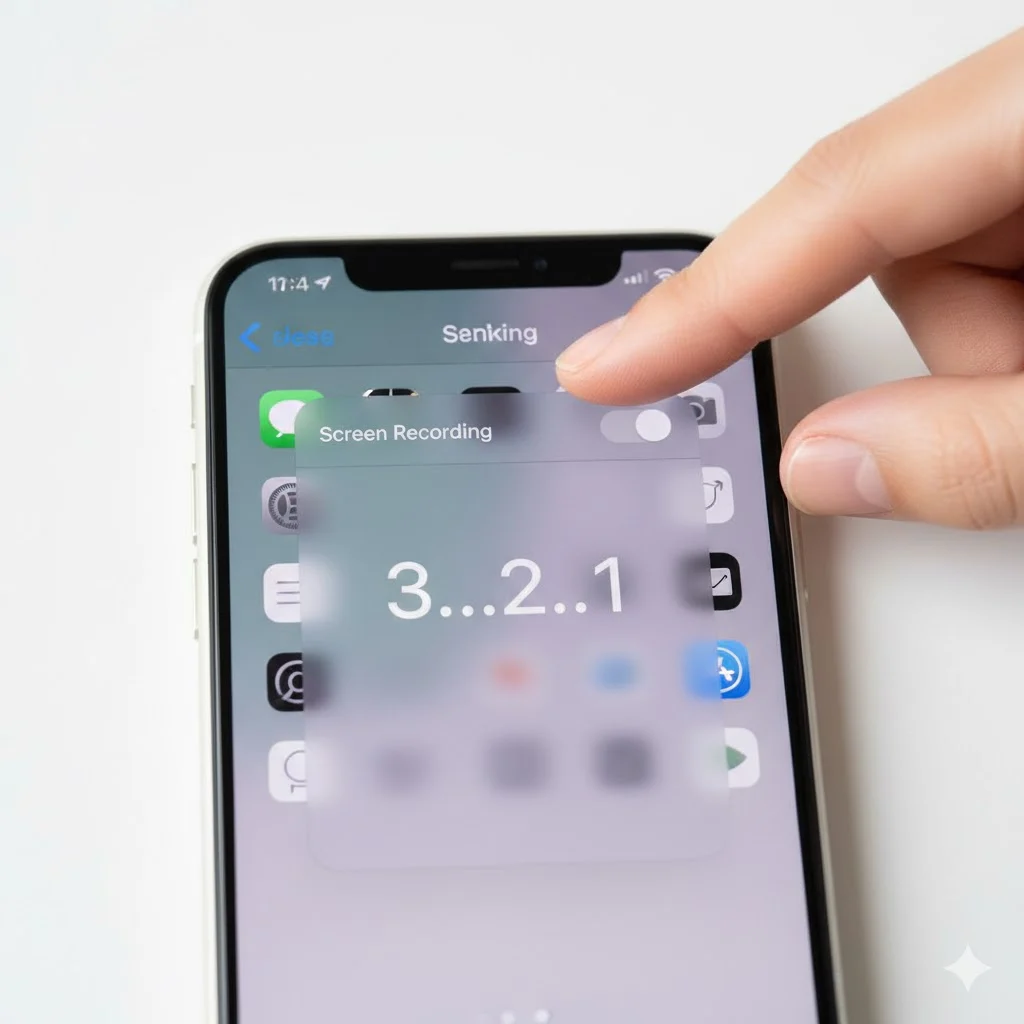
Step 1: Add Screen Recording to Control Center
- Go to Settings → Control Center
- Scroll to find Screen Recording
- Tap the “+” (Add) icon
- Now, swipe down (or up) to access the Control Center and see the record icon
📸 Pro Tip: Add it to the top of your Control Center list for quicker access.
Step 2: Start Recording Your iPhone Screen
- Open Control Center
- On iPhones with Face ID: swipe down from the top-right corner
- On iPhones with Home button: swipe up from the bottom edge
- Tap the Record button (⏺️)
- Wait for the 3-second countdown — then recording begins
- You’ll see a red timer bar at the top of your screen (recording indicator)
✅ Everything happening on your display is now being captured.
Step 3: Stop the Screen Recording
When finished:
- Tap the red bar → tap Stop, or
- Open Control Center → tap the Record button again
Your video automatically saves in Photos → Screen Recordings.
How to Screen Record on iPhone With Sound
If you want to include your voice narration or app sounds, here’s how:
- Open Control Center
- Long-press the Record button
- Tap the Microphone icon 🎤 (turns red when on)
- Tap Start Recording
🎧 You can now speak while recording — perfect for tutorials, commentaries, or app reviews.
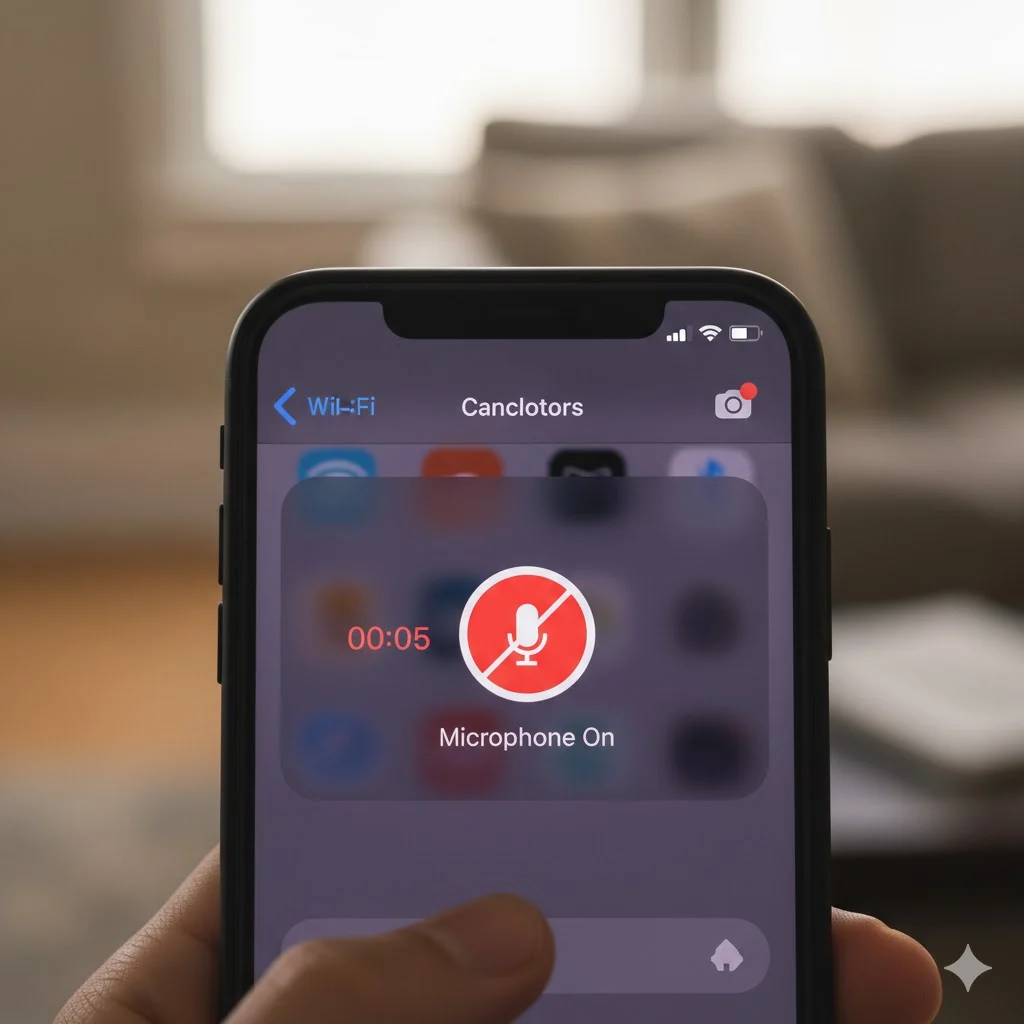
How to Screen Record Without Sound🔇
Prefer a silent recording? Easy.
- Open Control Center
- Tap Record (don’t long-press)
- Ensure the Microphone is off
- Start recording
This is ideal for clean visual demos or quick guides.
Edit iPhone Screen Recordings✂️
After recording, polish your clip for perfection:
- Open the Photos app
- Select your recording
- Tap Edit → Trim handles to adjust length
- Apply filters or cropping
- Tap Done → Save as New Clip
💡 For advanced edits, use iMovie or CapCut to add captions, transitions, or music.
Pro Tips for Better Screen Recordings
- ⚙️ Enable Do Not Disturb — avoid notifications mid-recording
- 💡 Boost brightness — enhances video clarity
- 📲 Use landscape mode — ideal for gameplay and tutorials
- 🧼 Clear background apps — smoother performance
- 🎨 Add annotations later using apps like CapCut or InShot
Screen Record on iPhone Using Mac
If you want to record your iPhone screen via Mac, do this:
- Connect iPhone to Mac using a USB cable
- Open QuickTime Player
- Go to File → New Movie Recording
- Choose your iPhone as the camera source
- Click Record
This method is perfect for long tutorials or professional content creation.
Troubleshooting: Screen Recording Not Working
If your iPhone screen recording isn’t working, check this table for quick fixes:
| Problem | Possible Cause | Fix |
|---|---|---|
| Record button missing | Not added to Control Center | Add it via Settings → Control Center |
| No sound in recording | Microphone turned off | Long-press record → turn mic on |
| Recording won’t save | Low storage space | Free up space in Settings → General → iPhone Storage |
| App not recording | Copyright protection | Some apps (e.g., Netflix) block screen capture |
Share Your Recordings
After recording and editing:
- Open Photos → Select recording
- Tap the Share icon ⬆️
- Choose Messages, Mail, AirDrop, or upload directly to YouTube/TikTok
💾 You can also transfer it to your computer for further editing.
Is Screen Recording Safe?
Yes — iOS ensures your screen recordings remain private unless you share them. Just remember not to record copyrighted material or private content without consent.
Quick Summary: iPhone Screen Recording
| Task | Action |
|---|---|
| Enable feature | Settings → Control Center → Add Screen Recording |
| Start recording | Control Center → Tap Record |
| Record with sound | Long-press → Microphone ON |
| Stop recording | Tap red bar → Stop |
| Edit video | Photos → Edit → Trim/Filter |
| Share | Photos → Share icon |
FAQs
1. Can all iPhones screen record?
Yes, any iPhone running iOS 11 or later supports screen recording.
2. How to screen record on iPhone with sound?
Hold the record button → Tap Microphone ON → Start Recording.
3. Where are recordings saved?
All recordings go to the Photos app → Screen Recordings folder.
4. Why can’t I record Netflix or Prime Video?
Apple blocks recording in DRM-protected apps to prevent copyright violations.
5. Can I record FaceTime calls on iPhone?
Technically yes, but Apple discourages it for privacy reasons. Always get consent.
6. Does screen recording capture notifications?
Yes, unless Do Not Disturb is enabled.
7. How to fix iPhone screen recording with no sound?
Long-press the Record button and turn the microphone ON before starting.
8. Can I record internal audio only?
No, iOS doesn’t support recording internal app audio without microphone input.
9. Is there a time limit?
Only limited by available storage.
10. How to increase volume in recordings?
Use the Photos edit tool or third-party apps like InShot to boost sound.
Conclusion
Learning how to screen record on iPhone is one of the simplest yet most useful iPhone tricks in 2025. Whether you’re sharing gameplay, recording tutorials, or capturing fun moments, Apple’s built-in tool has you covered.
Just remember:
- Add it to Control Center
- Choose sound or silent mode
- Edit before sharing
With these tips, you’ll record smooth, high-quality videos in no time 🎬